
QuickDB
The Ultimate Database Management & AI Integration Platform
An IDE-grade universal database client — as a VS Code extension and a standalone desktop app. 85 engines, a visual query builder, live dashboards, 255 chart styles, and a built-in MCP server exposing 32 tools to 10 AI clients.
🚀 Why QuickDB?
QuickDB turns your editor — or a dedicated desktop window — into a powerhouse database tool. Whether you're inspecting data, visualizing relationships, or letting AI write your queries, QuickDB gives you a seamless, context-rich experience.
- Universal database support — one interface for 85 engines (PostgreSQL, MySQL, SQLite, MongoDB, Redis, ClickHouse, Snowflake, and 78 more) across 59 driver families.
- AI-ready MCP server — expose your schema and data to AI agents (Cursor, Claude Desktop, Claude Code, Antigravity, VS Code, Windsurf, Continue, Cline, Roo Code, Kiro — 10 clients) as 32 tools.
- IDE-grade Query Console — autocomplete, live linting, go-to-definition, cancel, transactions, multi-tab, history and saved queries.
- Visual Query Builder — construct joins and aggregations without SQL.
- Table Manager & data grid — create/modify schema and edit rows inline.
- Data visualization — 255 chart styles from any query result.
- Dashboards — compose live chart / table / KPI-card widgets on a grid.
- AI assistants — NL→SQL, explain, optimize, fix, advisor, data quality.
- Two products, one codebase — the same features in the VS Code extension and the standalone desktop app.
📦 Install
VS Code extension
- Open the Extensions view (
Ctrl/Cmd+Shift+X). - Search for QuickDB → Install.
- Click the QuickDB icon in the Activity Bar.
Desktop app (Windows / macOS / Linux) — download the installer for your OS: .exe (Windows), .dmg (macOS), .AppImage / .deb (Linux).
🏁 Quick Start
- Open QuickDB — click the icon in the Activity Bar (extension) or launch the app (desktop).
- Add a connection — click
+(or runQuickDB: Add Connection). Pick your engine from the 85-engine grid, fill in the fields it shows (or paste apostgres:///mysql://URL), click Test connection, then Create. - Browse — expand the connection in the sidebar to see databases and tables; click a table to open the data grid.
- Query — hover a connection and click New Query (or right-click → New SQL Query). Write SQL with autocomplete, press Ctrl/Cmd+Enter to run.
- Go further — visualize a result, build a dashboard, or connect an AI agent via Setup MCP for AI Clients.
Supported Databases
85+ engines across 16 families — relational, analytical, NoSQL, vector, streaming, files, and SaaS.
MySQL family
PostgreSQL family
SQL Server family
SQLite family
Other relational
Analytics / Warehouse
Document
Key-value / Cache
Wide-column
Graph
Search
Time-series
Multi-model
Vector
Streaming
Files
SaaS
Feature Walkthroughs
Click any feature to expand its click-by-click steps.
- 1Click + in the sidebar or run QuickDB: Add Connection.
- 2Pick an engine (search the grid). The form adapts — file path for SQLite/DuckDB, host/port for servers, account id for Snowflake, etc.
- 3Optional: paste a mysql://, postgres://, mongodb:// or redis:// URL and the fields auto-fill.
- 4Optional: enable SSL/TLS, or an SSH tunnel — enter the bastion host/port/user plus a password or private-key path, and QuickDB forwards a local port through it.
- 5Optional: set a color (e.g. red for production) and choose whether the connection is exposed to AI clients via MCP.
- 6Click Test connection → Create.
Edit / remove — hover a connection for inline ✎ / 🗑, or right-click for the full menu.
- 1Expand a connection to see databases (multi-db engines) or tables directly.
- 2Expand a table to see its columns with type icons.
- 3Hover actions per connection: New Query · Query Builder · ERD · Create Table/Database · Export · Import · Edit · Remove.
- 4Use Find table, or Speed Search (Ctrl/Cmd+F) to filter the whole tree — Esc clears it.
- 5Click any table to open the Table Viewer.
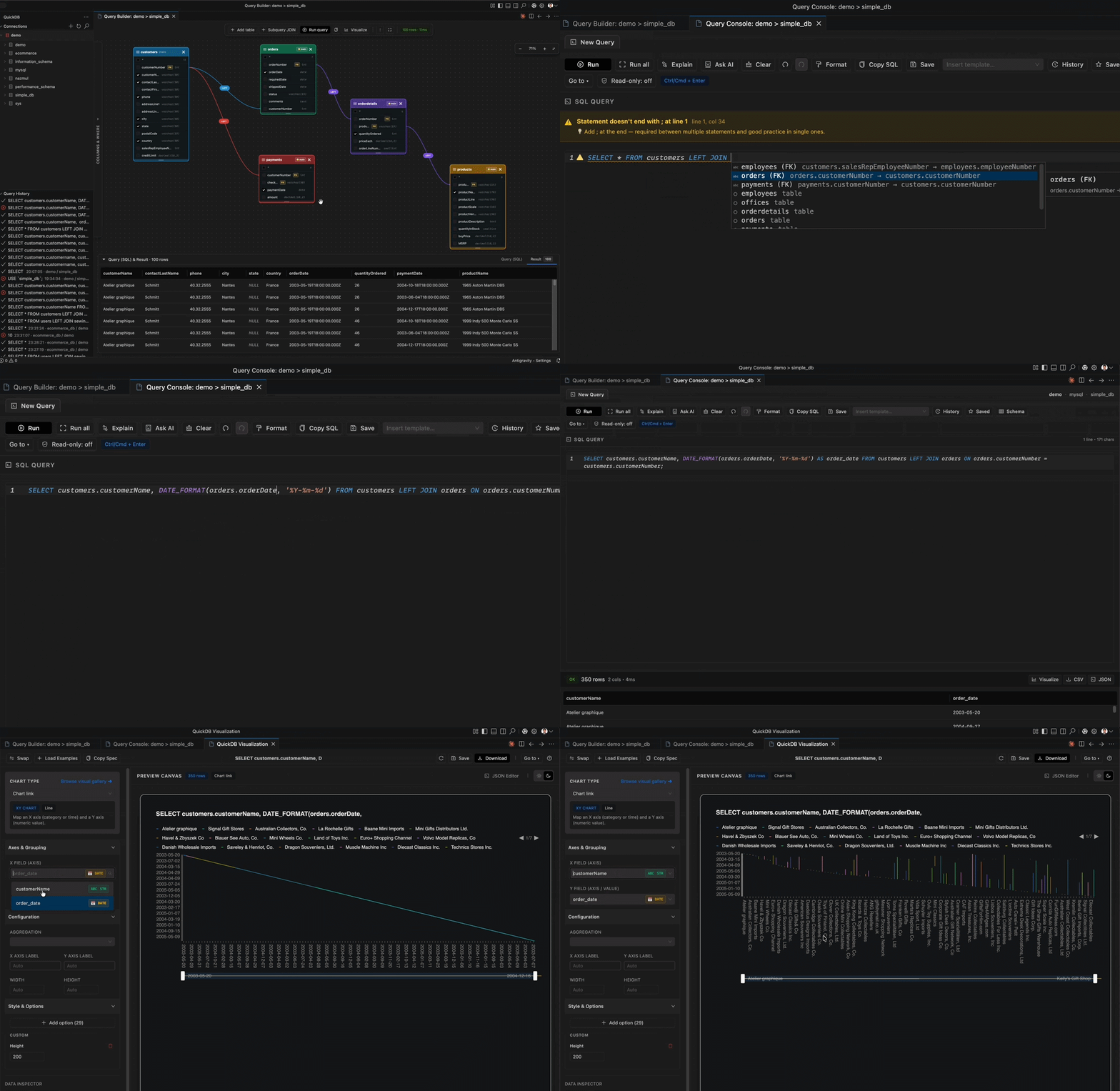
- 1Open via New Query on a connection, right-click → New SQL Query, or QuickDB: New SQL Query.
- 2Write with autocomplete (tables after FROM, columns after WHERE, dialect-aware keywords, auto-aliasing, smart JOIN with ready-made ON conditions), live linting with one-click fixes, Ctrl/Cmd+Click to go to a definition, F2 to rename an alias, and Format to reflow SQL.
- 3Run with Ctrl/Cmd+Enter (statement under caret), Run all, or Stop to cancel server-side.
- 4Explain shows the query plan; Profile opens the visual plan tree. Read-only blocks non-SELECT statements; auto-commit off enables manual Commit/Rollback.
- 5Results stream into a virtualized grid (smooth at 100k+ rows) — filter, sort, expand cells, Export to CSV/JSON, or send to Visualize.
- 6Multi-tab console, History (Ctrl/Cmd+Alt+E), Saved queries, templates, and AI actions (Ask AI / Explain / Optimize / Fix).
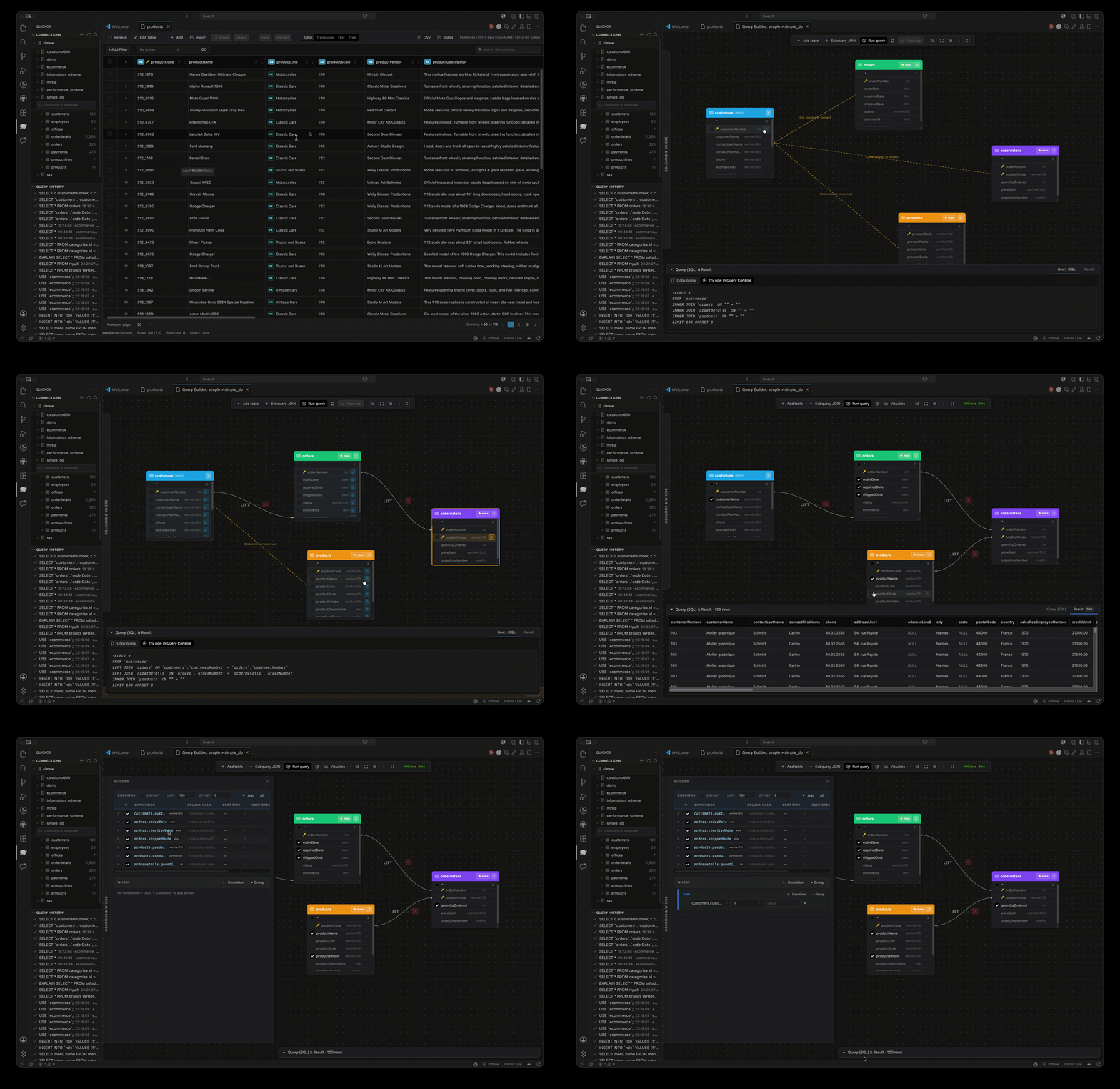
- 1Hover a connection → Query Builder (or QuickDB: Open Query Builder).
- 2Add tables to the canvas; pick columns, filters, joins, grouping, and ordering.
- 3Watch the live SQL preview — validated against the real schema as you build.
- 4Run in place, or Open in Console to keep iterating in a query tab.
- 1Click a table in the sidebar — the panel opens instantly with a progress indicator, then streams data (a 30s cache makes reopening instant).
- 2Edit inline: change cells, add rows, delete rows.
- 3Preview DML shows the exact SQL before you Save.
- 4Undo/redo, bulk fill, and paste from a spreadsheet.
- 5Navigate foreign keys — jump to referenced rows, or list every row that references one.
- 6Switch views: table grid · single record · transpose · tree · text.
- 7Cell helpers: Ctrl/Cmd+Alt+N → NULL, Ctrl/Cmd+Alt+D → DEFAULT, Ctrl/Cmd+Alt+Z → revert, Ctrl/Cmd+G → go to row.
- 1Run a query, then click Visualize (or QuickDB: Open Visualization).
- 2Pick a chart style from the searchable dropdown — 255 styles with image thumbnails (column, line, pie, heatmap, sankey, word cloud, graphs, and more).
- 3Map fields (X / Y / color / series / size) and choose an aggregation — sum, count, avg, min, max.
- 4Style & Options adds ~29 guided controls (legend, labels, colors, gridlines, radius…) with a live-updating preview.
- 5Export to PNG / SVG, or save the chart to your library.
- 1Run QuickDB: Dashboards → New dashboard.
- 2Add widgets: + Chart, + Table, or + Card (KPI) — each with its own SQL query and connection.
- 3Arrange each widget's width (¼ … full) and height, and drag by the handle to reorder on the 12-column grid.
- 4Make it live — set a per-widget or whole-board auto-refresh interval.
- 5Save. Reopening a dashboard re-runs every widget against the live database.
- 6Toggle Report view for a clean display, or Edit to change it — dashboards list with widget counts and reopen to the exact saved layout.
- 1Run QuickDB: Open ERD Diagram (or use the ERD hover action on a connection).
- 2QuickDB lays out your tables with columns — PK/FK badges — and foreign-key edges automatically, no manual arranging.
- 1Data Compare (QuickDB: Compare Data) — pick two tables + key columns to see added / removed / changed rows.
- 2Schema Compare (QuickDB: Compare Schema) — diff two schemas, generate migration DDL, then Apply Migration to run it after confirmation.
- 3Seed Data (QuickDB: Generate Seed Data) — realistic sample rows for a table.
- 4Import / Export — database and table level, with SQL-dump import progress.
- 1Query Profiler — EXPLAIN / ANALYZE with a visual plan tree (PostgreSQL).
- 2Database Health — size, sessions, cache hit rates, table bloat.
- 3Data Profile — per-column null %, distinct counts, min/max.
- 4Index Analysis — unused, duplicate, and missing indexes.
- 5Server Monitor — live sessions, with the ability to kill a running query.
- 1Code Generator — model / DAO / ORM code straight from a table.
- 2Schema Docs — full Markdown documentation of a database, with optional row counts.
- 3Migration Generator — a migration script derived from the live schema.
- 1Users & Privileges lists users/roles and their grants.
- 2Create/drop users, and grant/revoke privileges — every write shows the exact SQL before you confirm it.
- 3RLS policies are surfaced where the engine supports them.
- 1Open AI Settings (QuickDB: AI Settings) — choose a provider: the editor's built-in model (no key), Ollama (local/private — default on desktop), or a cloud provider. Pick a model (live list from Ollama) and test reachability.
- 2AI SQL Assistant — natural language → SQL with schema context, plus Explain / Optimize / Fix / Document. "Open in Console" runs the result.
- 3AI Chat — schema-aware chat that can run suggested SQL (writes confirm first).
- 4AI Advisor — index & performance advice for a table.
- 5AI Data Quality — a quality report plus fix statements for a table.
Not configured yet? Every AI panel shows a hint with an Open AI Settings button instead of failing.
- 1Run QuickDB: Auto-Configure MCP for Detected Clients (or open the MCP Setup tab).
- 2Pick which of the 10 clients to configure: Cursor, Claude Desktop, Claude Code, Antigravity, VS Code, Windsurf, Continue, Cline, Roo Code, Kiro.
- 3Use the per-client checkboxes to choose exactly which connections each client can see.
- 4Click Setup — QuickDB writes the correct config for that client's JSON shape, backs up the previous file, and encrypts embedded credentials.
Browse every tool in the MCP Tools panel. Mutating tools are gated behind an approval confirmer (default-deny in stdio).
See It in Action
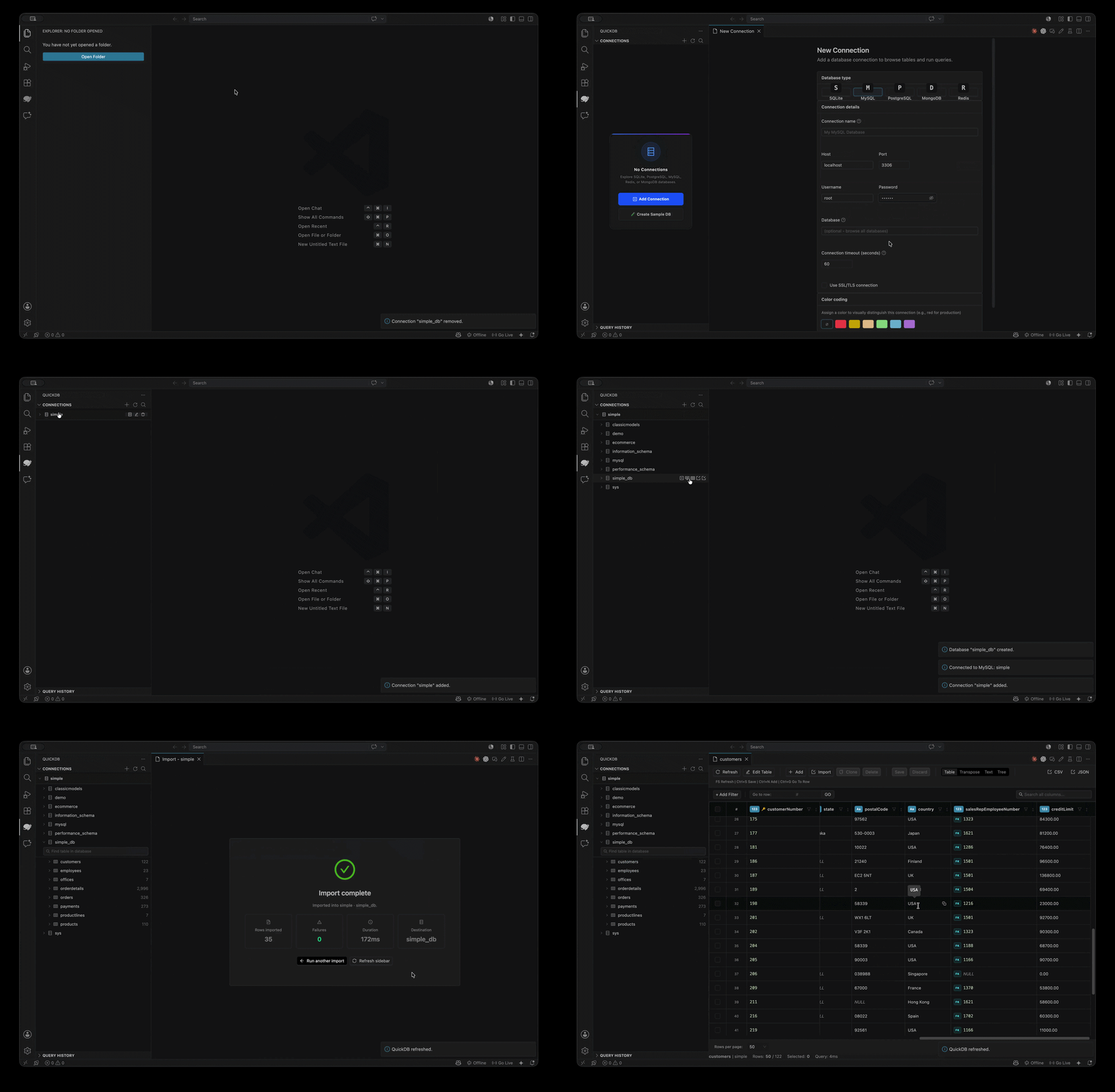
Database Management & Imports
Connect to your servers and import data seamlessly.
Visual Query Builder
Build complex SQL queries visually — no code required.
Query Console
Autocomplete, live linting, and instant results at scale.
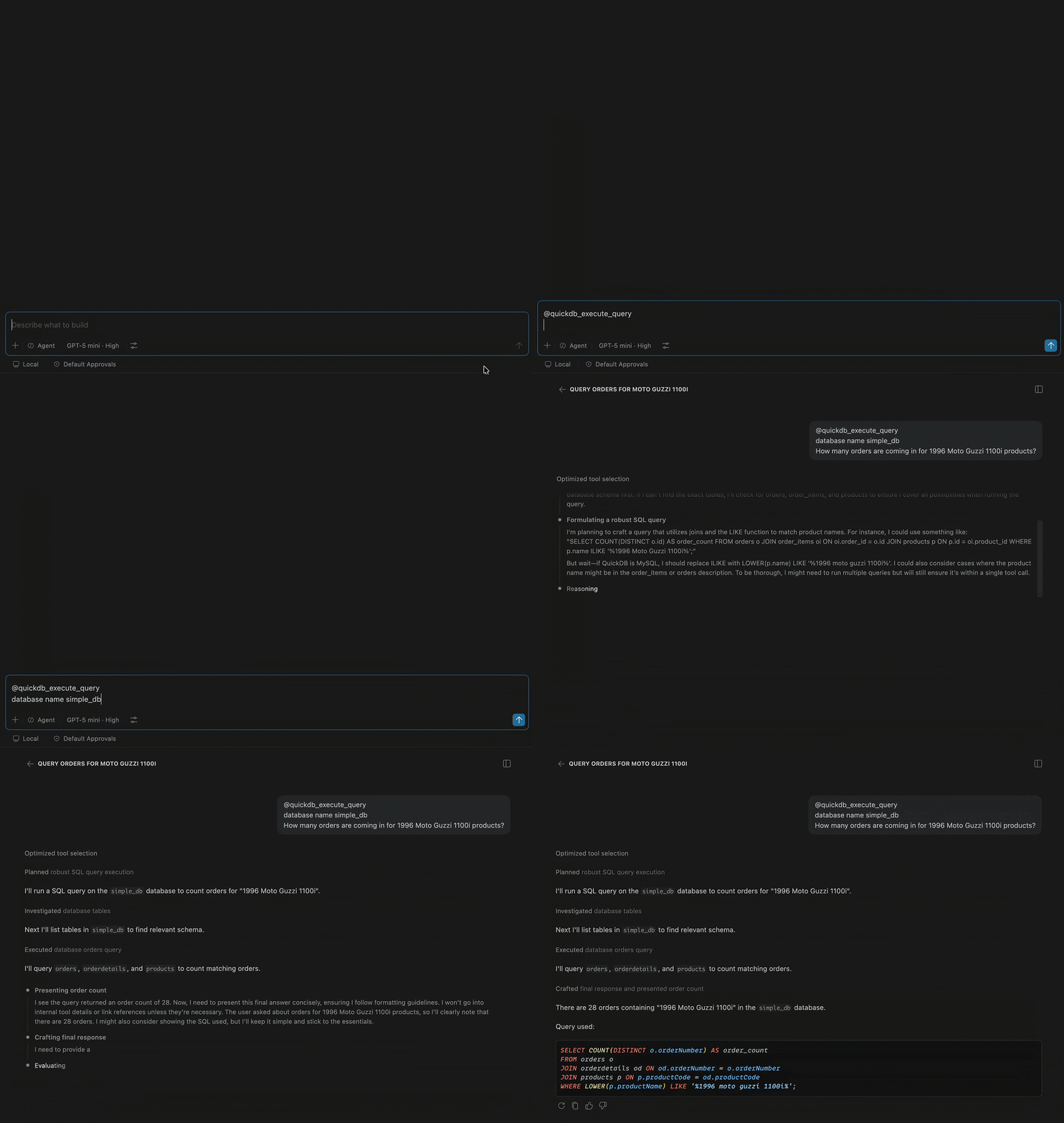
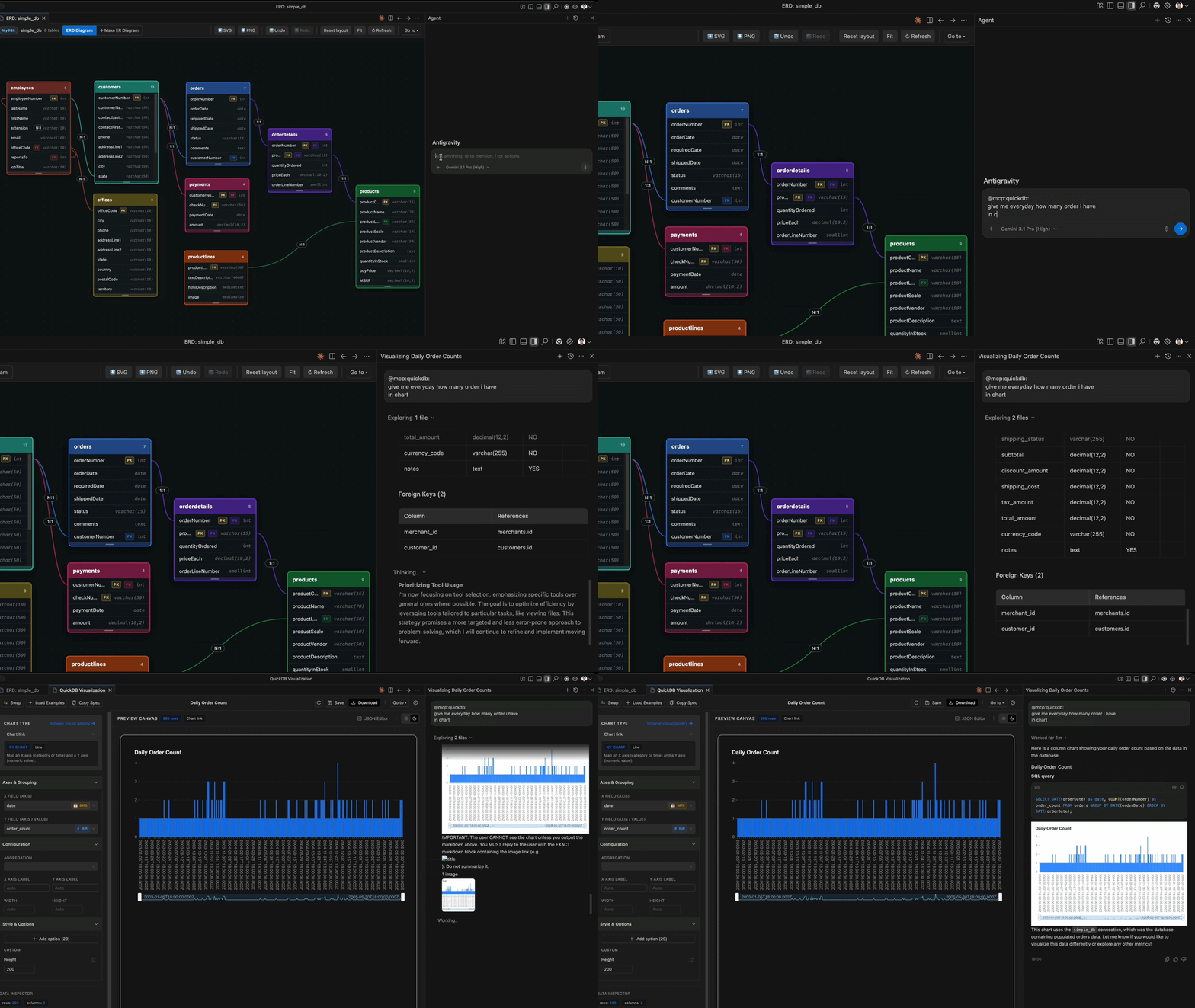
AI-Generated Charts via MCP
Ask an AI assistant to visualize data — QuickDB's MCP server renders the chart.
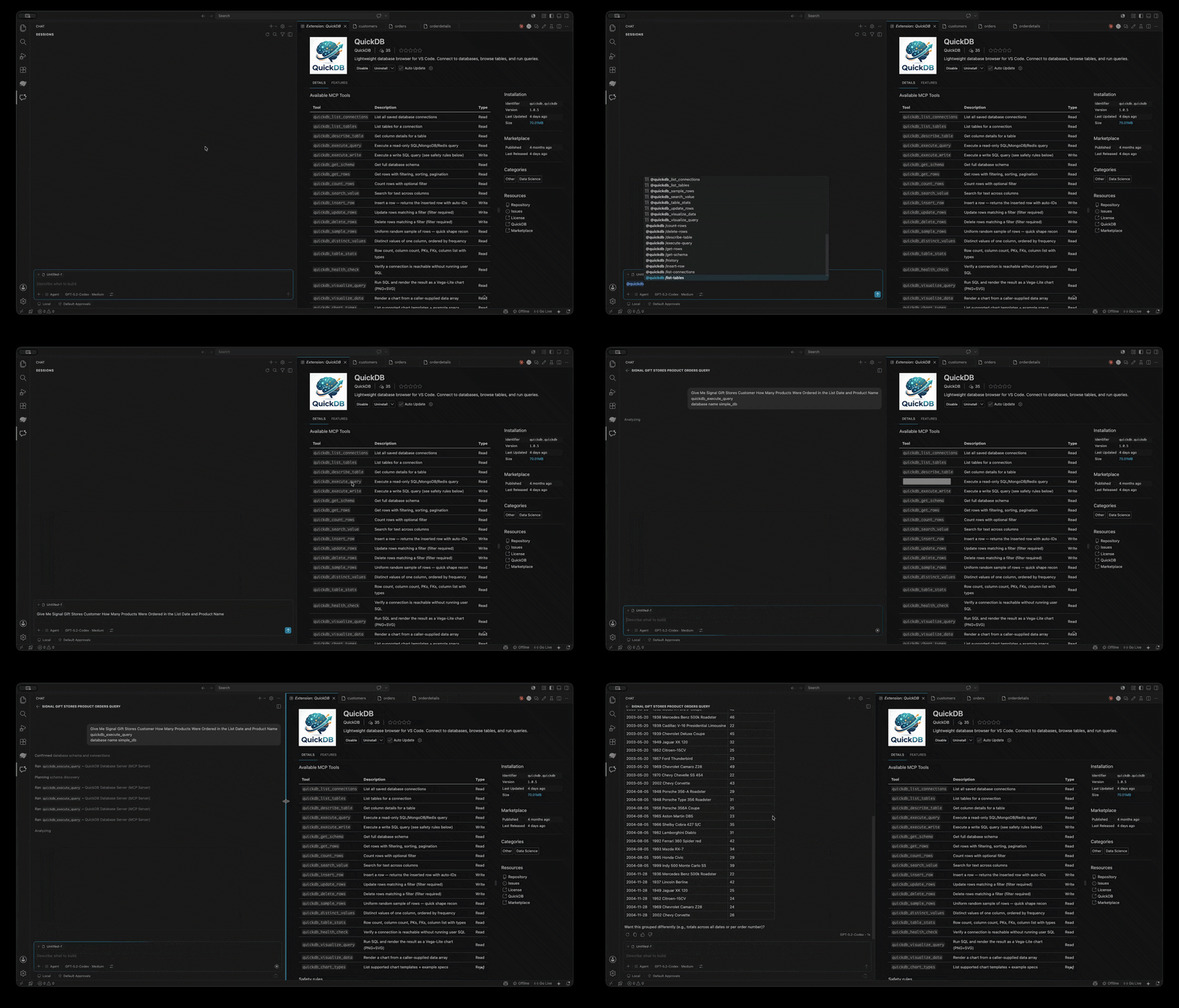
MCP Setup Panel
Pick clients and connections, then auto-configure Cursor, Claude Desktop, Windsurf, and 7 more.
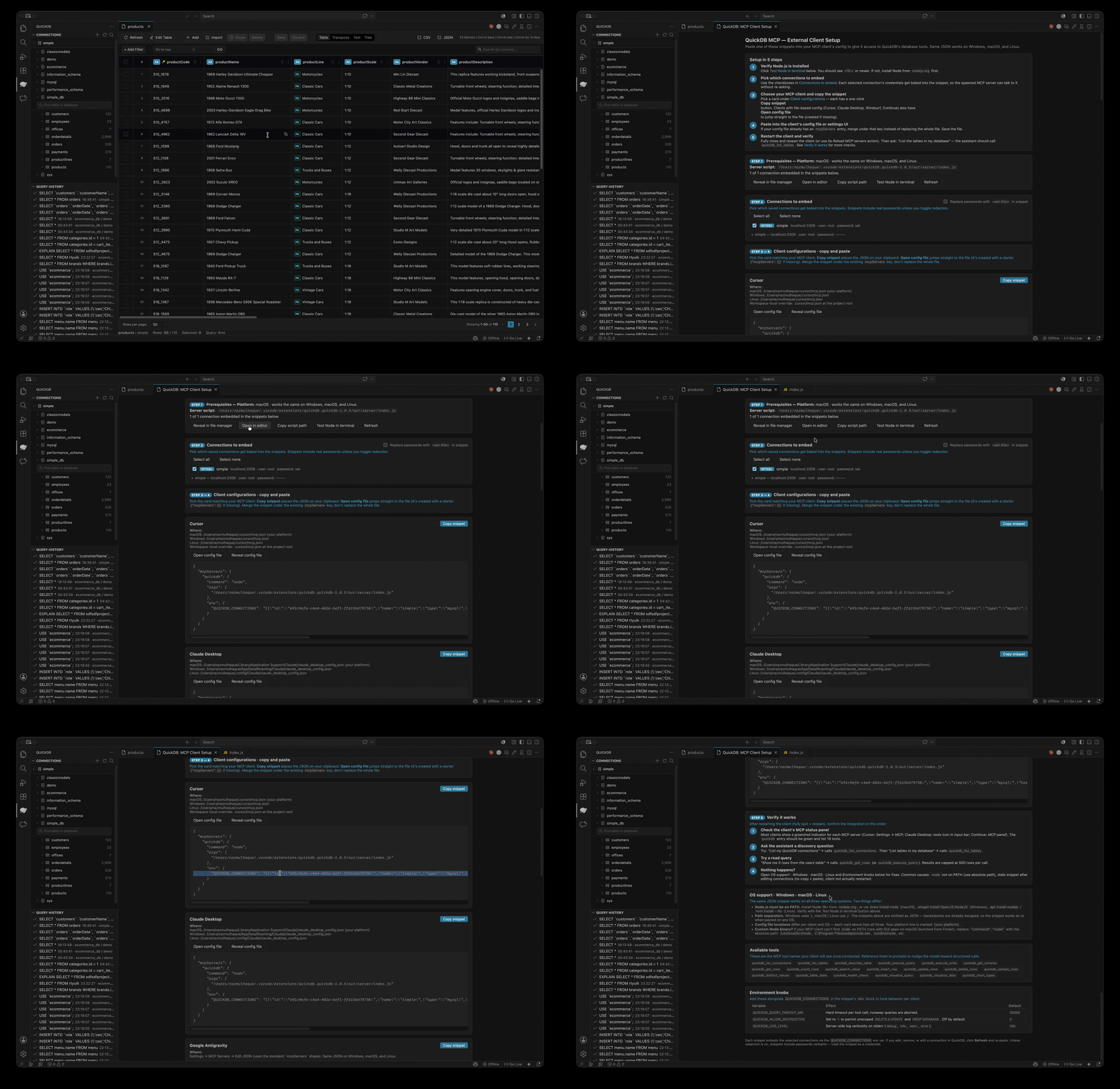
Connect External AI Clients
Paste the generated config once and restart your client — QuickDB tools appear immediately.
🖥️ Desktop App
A standalone client for Windows, macOS, and Linux, built on Electron and reusing the same UI and database core as the extension.
- Single window, tabbed workspace — left sidebar (connections tree + grouped tool catalog), a tab bar on top, with close / close-others / close-all.
- Own visual identity — indigo-slate theme, teal accent, native typography, smooth animations.
- Sidebar groups — Connections (per-connection New Query / Builder / ERD / Edit / Remove), Visualize (Dashboards, Data Visualization), Compare & Move, Performance & Health, Generate, Admin, AI & MCP.
- AI runs on Ollama; connections, saved queries, dashboards and charts persist as JSON in the OS user-data dir.
🧩 Command Reference
Open the Command Palette (Ctrl/Cmd+Shift+P) and type QuickDB. Highlights:
- Connections & schema — Add / Edit / Remove Connection · Refresh · Create Table · Edit Table · Drop Table · Empty Table · Move Table · Create/Delete Index · Empty Database · Drop All Tables · Create Sample Database
- Query & data — New SQL Query · Open Query Builder · View Table Data · Browse Query History · Open Visualization · Pivot Table · Aggregation Builder · SQL Snippets
- Compare / move — Compare Data · Compare Schema · Generate Seed Data · Import/Export Database · Import/Export Table · Backup / Restore Database
- Insights — Database Health · Index Analysis · Profile Table Data · Query Profiler · Server Monitor · Dashboards · Query History Dashboard
- Design / generate — Generate Code from Schema · Generate Schema Docs · Generate Migration · Browse Database Objects · Find in Database
- Security — Users & Privileges
- AI — AI SQL Assistant · AI Chat · AI Advisor · AI Data Quality · AI Settings · Set AI API Key
- MCP — MCP Tools · Auto-Configure MCP for Detected Clients · Start/Stop MCP Server · Generate Cursor Rules
- Local — Local Data (Saved Queries / Notes / Activity) · Show Local Activity Database
⌨️ Keyboard Shortcuts
| Shortcut | Action | Context |
|---|---|---|
Ctrl/Cmd+Enter | Run current statement | Query Console |
Ctrl/Cmd+F | Speed Search (filter tree) | Connections view |
Esc | Clear tree filter | Connections view |
Ctrl/Cmd+Alt+E | Browse history | Active panel |
Ctrl/Cmd+G | Go to row | Table Viewer |
Ctrl/Cmd+Alt+N | Set cell to NULL | Table Viewer |
Ctrl/Cmd+Alt+D | Set cell to DEFAULT | Table Viewer |
Ctrl/Cmd+Alt+Z | Revert cell | Table Viewer |
F2 | Rename alias/identifier | Query Console |
⚙️ Settings
| Setting | Description |
|---|---|
quickdb.maxRowsPerPage | Rows fetched per page in the table viewer |
quickdb.autoConnect | Auto-connect saved connections on startup |
quickdb.saveHistory | Keep executed queries in local history |
quickdb.backupDir | Default folder for backups |
quickdb.ai.provider | AI provider: editor model · Ollama · cloud |
quickdb.ai.cloudProvider | Cloud AI vendor (when provider = cloud) |
quickdb.ai.model | Model name (e.g. an Ollama model) |
quickdb.ai.ollamaUrl | Ollama server URL (default http://localhost:11434) |
quickdb.apiUrl | Optional backend API URL |
quickdb.scheduledJobs.enabled | Enable scheduled jobs |
🔐 Security
- No hardcoded secrets anywhere in source, fixtures, or docs.
- Credential encryption — passwords and SSH secrets embedded in exported MCP client configs are encrypted with AES-256-GCM using a machine-derived key (
hostname + platform + arch); no key is stored, and a copied config is useless on another machine. - Query-safety model — the visual builder validates table/column names against the live schema before generating SQL.
- Write confirmations — destructive operations (drop, truncate, privilege grants, migrations, AI-suggested writes) require confirmation.
- MCP default-deny — mutating MCP tools require approval.
- Read-only mode in the console blocks non-SELECT statements at the source.
🩺 Troubleshooting
- "Test connection" says unsupported — update QuickDB; all 85 engines support Test. If it still fails, the message is the driver's real error (check host/port/credentials, or SSL/SSH settings).
- A panel looks stale after an update — reload the window (
Developer: Reload Window) so the latest webview bundle loads. - Chart text is invisible / axes missing — the chart theme follows the app (light text on dark). Re-open the panel if it was cached.
- AI panel just shows a hint — AI isn't configured. Click Open AI Settings, start Ollama (
ollama serve), and select an installed model. - MCP tools don't appear in the AI client — restart the client after Setup and confirm the connection was ticked for that client.
- SSH tunnel fails — verify the SSH host is reachable, the key path is readable, and the database host/port are what the bastion sees.
- Desktop app won't start — from
desktop/, deletenode_modules, runnpm install, thennpm start.